Turn a photo into a dithered wallpaper
Any photo can be the starting point. Pixel Soup reads how light or dark it is, repaints it in a palette you choose, and dithers the result. The photo is the drawing; the colours and the texture are yours.
Steps
- Open the editor, and on the Shape tab choose Image. A file picker opens.
- Pick a photo. JPEG, PNG and HEIC all work, including photos straight off an iPhone.
- On the Color tab, choose a palette. The photo's own colours are replaced by these, darkest to lightest.
- On the Dither tab, choose a style. Halftone and Bayer 8 are the safe choices. Benday makes it look like a printed comic.
- Press Apply.
You can also drag a photo from Finder straight onto the preview at the top of the editor.
What makes a photo work
- Contrast. Only light and dark survive, so a photo with clear light and shadow keeps its shape. A flat grey one turns to mush.
- Big shapes. A skyline, a face in close-up, a single object. Fine detail is lost to the pixel size.
- Then the dials. Contrast pushes the tones apart, Shift slides the palette along, and Invert swaps light for dark, which often rescues a photo that is not working.
Borrowing a photo's colours instead
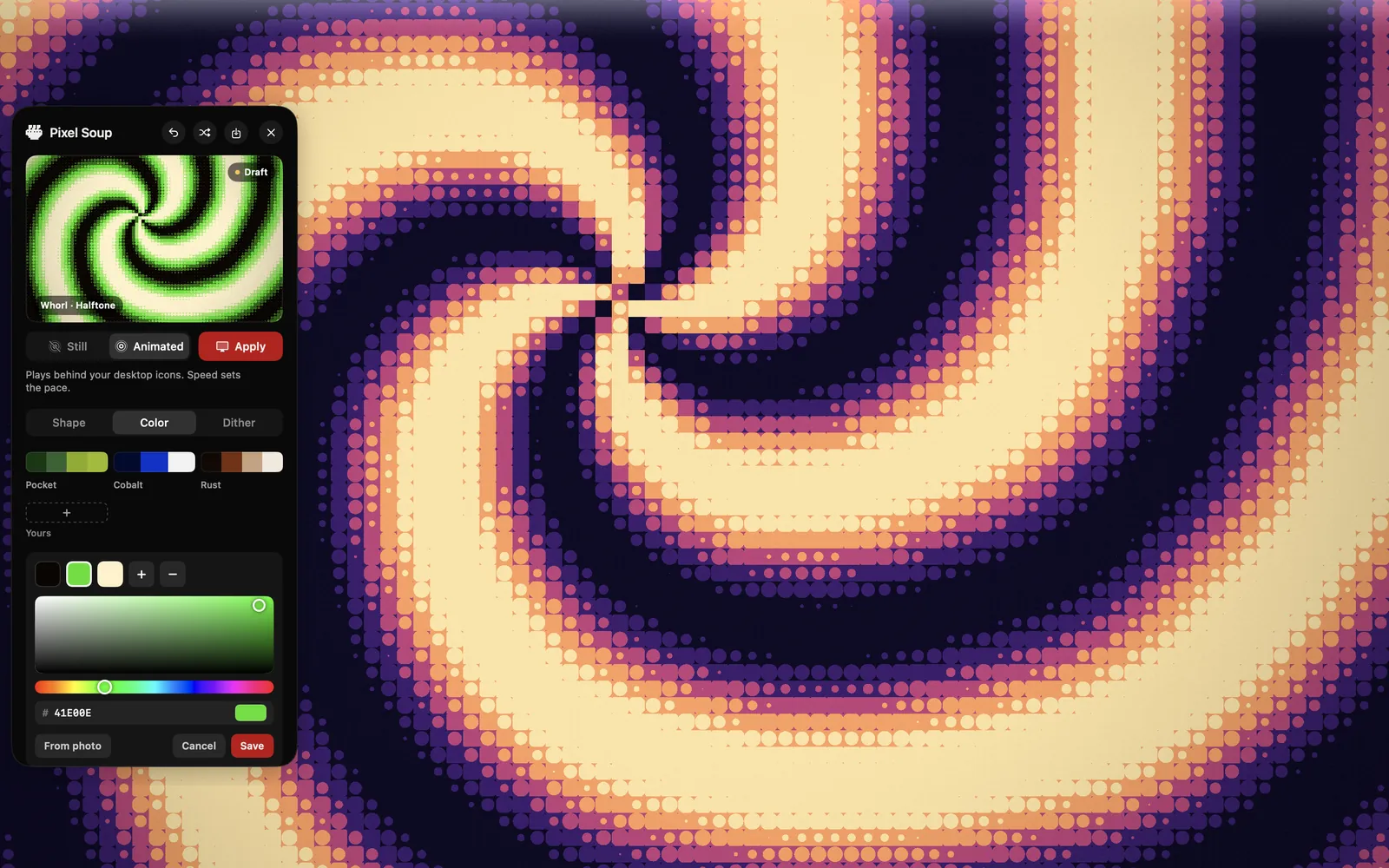
Sometimes you want the colours, not the picture. On the Color tab, make a new palette and press From photo. Pixel Soup picks the five main colours out of the picture and orders them from dark to light. Use that palette on any of the shapes.
Where the photo goes
Nowhere. It is copied into the app's own folder on your Mac so the wallpaper keeps working if you move the original, and it is never uploaded. If you like the result, export it as a PNG at your display's size, 6K, iPhone size or a square.
Get Pixel Soup $4.99 launch week, then $9.99. Once, no subscription.